Current Status: Fleet Control Server
Status: OK.
Current Status: Apple iOS compatibility
May 2022: Compatibility testing between the Gyronimo Flight Pad app and iPadOS 15.5
is complete and we didn’t find any issues. Feel free to update at your convenience.
Should you experience any problems, please contact us.
SUPPORT
FREQUENTLY ASKED QUESTIONS
USER GUIDES & PRODUCT BROCHURES

Flight Pad Quick Start
Learn how to use the Flight Pad app without a PRO account and buy aircraft categories via In-App-Purchase

R22 Performance Pad
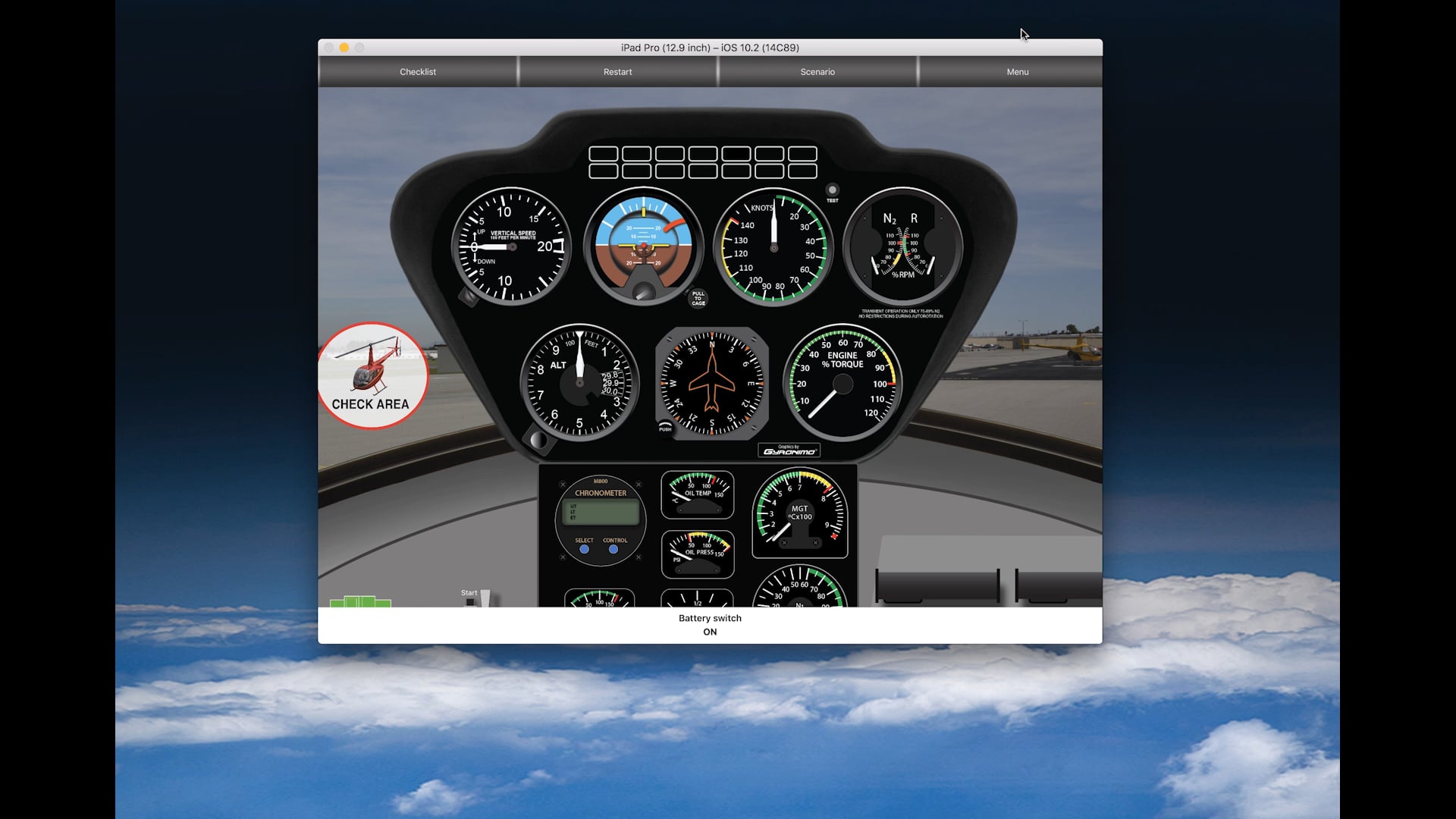
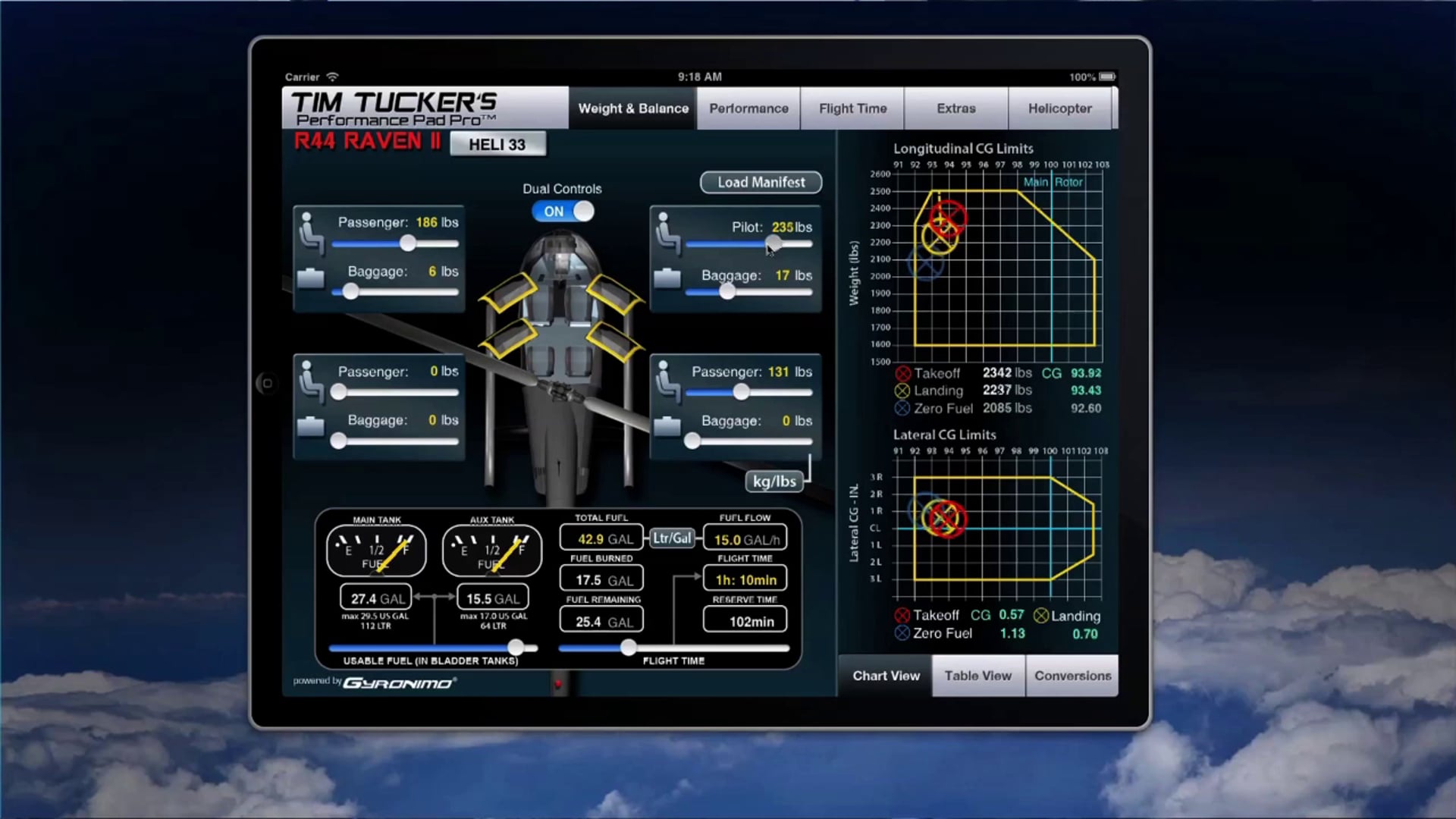
This brochure explains the functions and features of the Gyronimo / Tim Tucker Performance Pad for iPad

Test Flight Pad for free
This guide teaches you how to test all the aircraft in the library for free before deciding to buy

R66 Performance Pad
This brochure explains the functions and features of the Gyronimo / Tim Tucker Performance Pad for iPad

Gyronimo E6B Pro Pad
Our detailed info brochure for the next generation flight computer for fixed wing and helicopter pilots

Custom App Developments
Learn more about our dedicated apps for air ambulance, law enforcement, aerial work and business operators